Showing posts with label component development. Show all posts

Wednesday, October 8, 2014

App Inventor dev tricks: reducing compilation time while doing development

I want to share a few tricks that some of us use for speeding up App Inventor when we are full on development mode. Note that most of these tricks should only be used while developing, but when you are ready to open a pull request you should skip all tricks, make a full compilation for all languages and browsers, and fully test (manually as much as you can, and always run `ant tests`).

The first thing you should check (at least from time to time) is the listing of available targets in the main ant script. Here is how:

Tip 1: check out all targets available with `ant -p` from time to time.

At this particular time, it looks like the following:

appinventor-jos$ ant -p
Buildfile: ~/appinventor/build.xml
Other targets:

AIMergerApp
Blockly
BlocklyTest
PlayApp
RunLocalBuildServer
all
clean
comps
installplay
javadoc
noplay
tests

Default target: all


As you can see, there are a number of targets here, but in this post I will only go into the ones I consider that save time during development. The following are only recommendations, you do not have to do this, of course!

Also consider that if you see a new target being added, make sure you understand how to use it because it can save you some time in the long run.

Tip 2: avoid using `ant clean` whenever you can.

Compiling App Inventor is done incrementally, so only what's needed to be compiled will be compiled. Unfortunately, the GWT part of the system takes literally ages when a full compilation needs to happen (see Tip 6 for more on this). If you are making changes in that part of the system, you are kind of stuck with a full compilation, but it does not mean you need to clean all the time.

The clean target does not only delete all the compiled files, but also deletes all your projects, so use with caution. When would you use clean, then? Well, if things start to get weird, like rare errors you haven't seen before, or compilation errors that do not seem to appear in your IDE, then it's time to clean. Another good indication of cleaning time is if you change branches that contain incompatible code. But if you can avoid this, there are a number of other targets that can help you out. Let's see some of them.

Tip 3: When in Blocky Land, do as the Blocklians do.
All the App Inventor Blockly related code gets compiled into a single file called blockly-all.js that you will find in your build folder. If you are making JavaScript changes (and only in the /blocklyeditor or lib/blockly files) you can rebuild this file by calling `ant Blockly` (note the Capital B). No other files need rebuilding (generally), and this target takes time in the order of seconds and not minutes! Make sure you check out tip 4 to see how to reload this file without restarting the main server.

Tip 4: There's no need to restart the main server --- most of the time!
Most times there is no need to restart the app engine server. By disabling caching in your browser(s) and reloading the project, all should be good to go.
You can disable caching in Chrome Dev tools or in Firefox (probably in Safari too!).

In Firefox, go to 'Tools --> Web Developer --> Developer Toolbar' and click on the wrench icon at the end of the toolbar, at the bottom of the page. The toolbar will enlarge and then you can click on a gear icon for settings. Scroll down to 'Advanced Settings' and you will see an option like the one in the following figure:
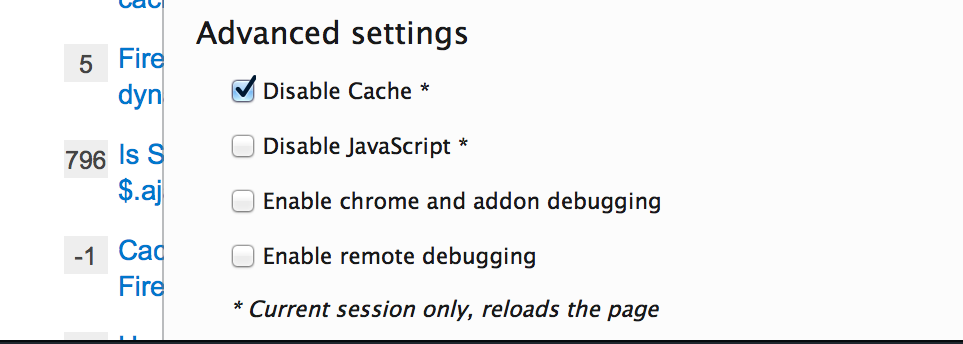
Disabling cache - Firefox


In Chrome Dev Tools you simply need to click on the gear icon for settings and you will see something similar to the next figure:
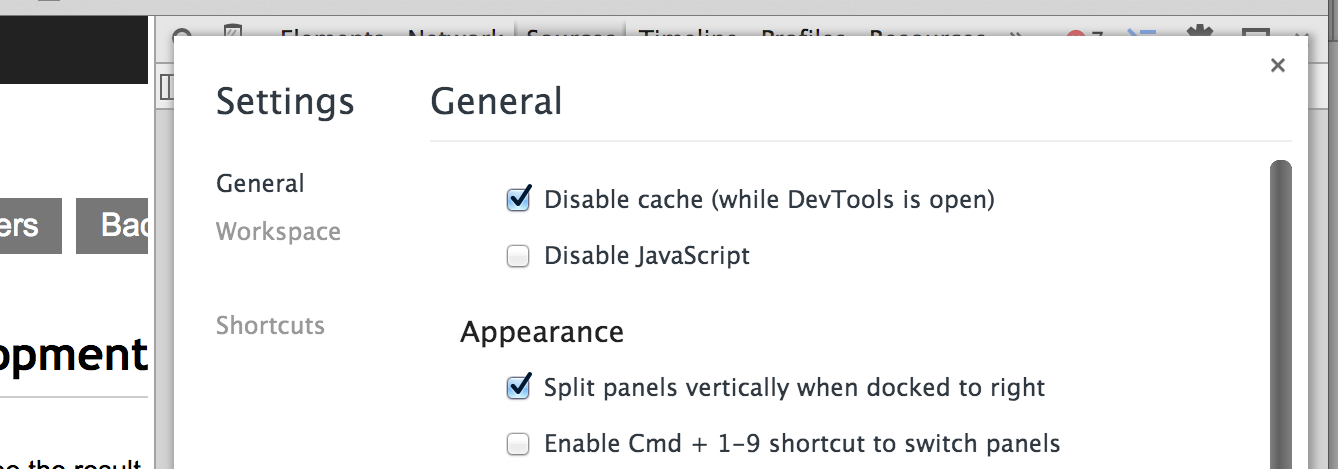
Disabling caching - Google Chrome


Note that disabling cache only applies when you have the dev tools open, so you don't have to worry about your normal web surfing with this setting.

Tip 5: Component changes might not need a full build
UNLESS you change the signature of a method (in blocks this can be a method or event signature, or a property), you will not need to reflect those changes in the designer, so there's no need to build the GWT part of the system.

When no changes to the designer are needed, you can use `ant comps`, which will not only compile exclusively changes to your component, but will also push a freshly baked App Inventor Companion app to your phone if you have it connected through USB.

Tip 6: Minimize permutations in GWT compilation
There are two ways of minimizing the number of compilations that GWT will run during a full build, one being restricting the number of browsers you build for, and the second being the number of languages you fully build. These changes can be made in the YaClient.gwt.xml file.

If you generally develop only using Chrome, or Safari, or Firefox, you can modify the GWT config file to avoid building for other browsers. In line 10 in the following gist, in the value for user.agent you can choose between 'safari' and 'gecko1_8'. If you generally only use firefox, you can delete everything before the comma (including the comma). If you generally use chrome or safari, keep the safari value and delete the comma and the gecko part. This will compile GWT only for the browser you have chosen.

Since we have introduced the internationalization code, the more languages we add, the longer it takes to build (more permutations of the code). In the gist again, if you comment out lines 104 to 109, both included, you will only build the interface in English.

You can combine languages and browser and go down to 2 permutations instead of 9, which will save several minutes from your build.

Tip 7: Do you really need that build server running all of the time?
This isn't really a compilation tip, but it might also save you time while developing.
Some people use a starting script that runs both the app engine server and the build server. Most of the time (note, not all of the time!) you will be making a bunch of changes and testing them on the companion if they are component changes, or in the browser if they are interface changes. You will only build an apk towards the end of the process (in component changes) before submitting a pull request. So you won't need to spin up the build server most of the time.

NOTE
As mentioned at the top of this post, please note that most of these tips are to be used only during development, BUT before you open a pull request, you should test fully, and with all languages and all browsers.

Happy (and hopefully shorter) building!


Thursday, July 24, 2014

Support for building apps on API Level 4 in App Inventor - Better Tablet Support

We've been working to take App Inventor out of screen compatibility mode, and that work has now been merged. This hasn't made it to a release yet, but it will soon. We will announce the changes in the forums when this happens.

What does it all mean though?
For starters, App Inventor will not support Android 1.5 (API level 3 - Cupcake) anymore, but we are compiling against Android 1.6 (API level 4 - Donut). We know there aren't a lot of devices out there still working at this level, but the change from level 3 to 4 was a rather large step to take, mainly because of the already mentioned screen compatibility mode.

Up to now, all App Inventor apps would be automatically scaled by the system to make them look the same in all devices, no matter their resolution or screen size. This sounds good, but the effect of this was that most elements would look rather awfully oversized on bigger screens such as tablets.  From now on, the resolution of the device will be used, and apps will look much better in larger screens with higher resolutions. As a drawback, the App Inventor designer will be a bit less in sync with what's actually being rendered on the device, but we've done our best to keep things as smooth as possible. If you find any issues with rendering in the designer please do get in touch with us through the forum.

What other changes have been made?
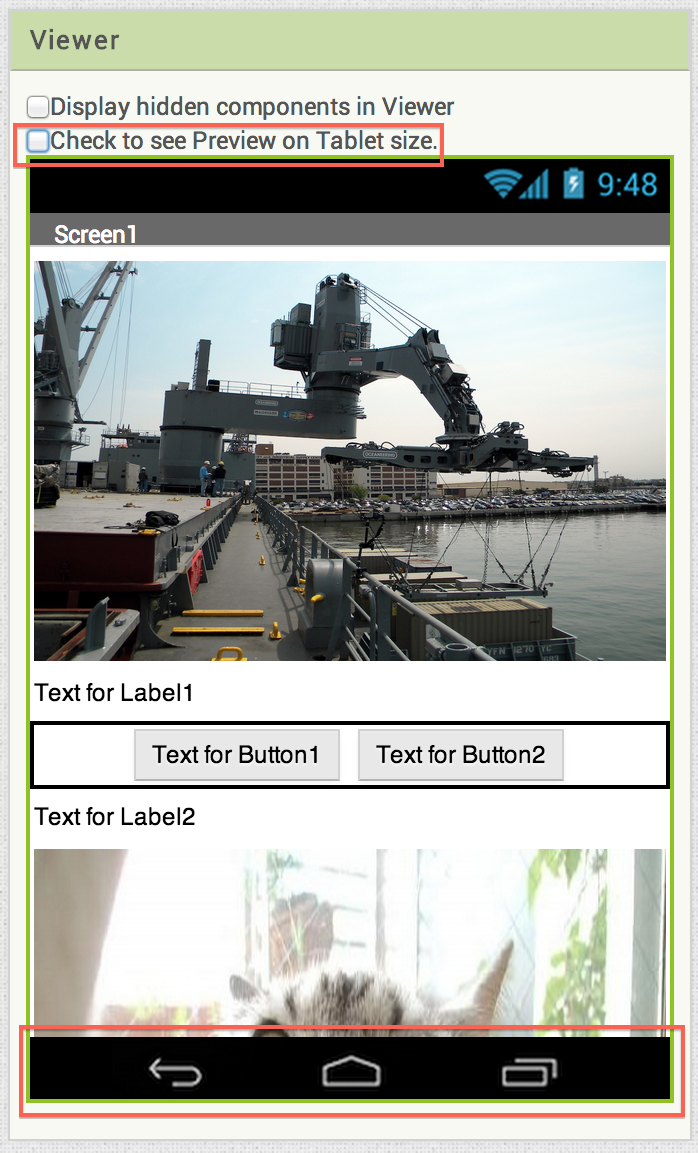
We have added a check to change from Tablet to Phone preview mode. It basically resizes the viewer so that you can see how the app looks at two different sizes. We are using Nexus sizes as generic here, Nexus4 for phone, and Nexus7 for tablet. As you can see in the screenshot below, we have also added the buttons bar found in most newer devices. The two changes are highlighted in red.


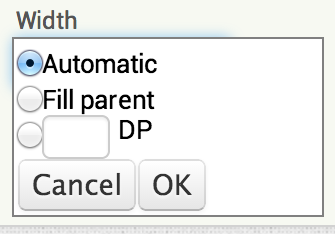
Another big change is that now all sizes for elements are density-independent pixels (DP) instead of hardcoded pixels. You will see a change in the Width and Height boxes in the designer.


The concept of DP is a little hard to grasp. Some people compare it to using percentages for sizes in HTML, but that's not quite correct. This is the definition used in the main Android docs:

Density-independent pixel (dp)

A virtual pixel unit that you should use when defining UI layout, to express layout dimensions or position in a density-independent way.
The density-independent pixel is equivalent to one physical pixel on a 160 dpi screen, which is the baseline density assumed by the system for a "medium" density screen. At runtime, the system transparently handles any scaling of the dp units, as necessary, based on the actual density of the screen in use. The conversion of dp units to screen pixels is simple:
px = dp * (dpi / 160). For example, on a 240 dpi screen, 1 dp equals 1.5 physical pixels. You should always use dp units when defining your application's UI, to ensure proper display of your UI on screens with different densities.

This DesignBytes video by Roman Nurik is a good source of information about the topic:


There is an additional property that has also been added to Images: scaleToFit; checking this box you can make an image fit completely the size of its enclosing area, for instance if you fill the parent in width or height, the image will fit the area (the image will not keep its aspect ratio, so be mindful when using this property).


So, with all these changes, what are the things to watch out for?
Some apps might be affected, especially those using hardcoded sizes in pixels. We have made many tests and the majority show very little differences, but there might still be some differences.
The other thing to watch out for is if you were using any tricks to grab the height and width of the screen to size your elements. Watch out for problems in there and please report whatever you find.

And what's next then? Well, this change opens a number of possibilities for App Inventor apps. We can start thinking about using a targetSDK level now, even providing a property in Screen1 to allow the user to choose which level that is. We could also start thinking about moving to API Level 8 (Froyo) as there are not many devices using a level lower than that. But probably the most important change here is that we can now start using support libraries and think about adding some of the most used design patterns in Android, such as Action Bar, navigation patterns, or even themes.

This is all a bit far ahead, but there's no technical reason stopping us now from working on changes like those. If you want to help with any of these projects, do get in touch through the open source forum. Great times ahead!

Wednesday, May 28, 2014

App Inventor 2 - Translation Component

In a previous post I talked about the new Yandex.Translate component that we added to App Inventor 2 about a week ago. In this video you can see how to use it.


Make sure you don't tamper with the Yandex note in the About this App Screen as it is a design requirement stated in the terms of use of the Yandex.Translate service.


Monday, May 26, 2014

Breaking changes for DatePicker in App Inventor 2

We've decided to to push a breaking change to our production server, which is something we very rarely do. The reason was that some Java style thinking leaked into one of the components, the DatePicker.

When I wrote that component I was obviously thinking about something else, and I broke one of the most distinctive abstractions that we use in App Inventor: all our sequences are 1-based and not 0-based. Newcomers to programming find this a lot easier to grasp. Because Java returns month numbers on a 0-based array, I went with that and our Month attribute returned 0 for January and 11 for December.
Because the component has not been out for long, we have decided that it's better to change it now and take the heat than leaving this leaked abstraction hurting our users.

More info in this announcement in the forums, and I've added an annotation to the video and post. This break will only affect you if you are still working on an app that uses this component, or if you want to upgrade an app that you programmed in the last week, and you were using some type of correction to counteract the fact that the sequence was 0-based. Otherwise, it should not affect you (we are hoping this affects to only a few developers).

Apologies for this breaking change; it is something that should never happen (again!).

Saturday, May 24, 2014

Note for developers about the new translation component in App Inventor 2

We have recently added a translation component based on the Yandex.Translate service.

This service needs an API key to work, and as you can imagine, we have not pushed that into the repo. In fact, we cannot circulate that key, so if you are creating your own distribution of App Inventor or simply running your own server from the MIT repository, you will have to add that key to the source code before you compile the system.

This is an easy thing to do; once you have created a Yandex account, you can request a key. After that, paste that key in the component.

  public YandexTranslate(ComponentContainer container) {
    super(container.$form());

    // Set up the Yandex.Translate Tagline in the 'About' screen
    form.setYandexTranslateTagline();

    // TODO (user) To provide users with this component you will need to obtain
    // a key with the Yandex.Translate service at http://api.yandex.com/translate/
    yandexKey = "";
    activity = container.$context();
  }

The place to paste it is in the yandexKey string available in the constructor, as shown in the code above. The instructions in the TODO are rather explicit.

And that would be all if you think that all your users will not generate enough traffic to go over the limits of a particular key. If that is not the case, I would recommend to modify the component to allow your users to add their own keys when creating apps. This is what we do in some other components such as Twitter or FusionTables.

Also note that this component, when being used, adds some information to the About screen in the app:


This is a design requirement that is mandatory to use the service. If you decide to tamper with that, or you have disabled the About screen, I would recommend to find another solution to keep this requirement or you will be breaching the terms of use for the service.

Monday, May 19, 2014

App Inventor 2 Spinner component

A Spinner in Android provides a quick way to choose from a set of options. We have added a Spinner to App Inventor 2, and it's super easy to use. Have a look at the following video to find out how.

App Inventor 2 ListView component

The existing ListPicker allows to generate a series of choices to let the user decide which one to choose; for this, it creates a new Screen (or activity). The new ListView component works in the same way, with an almost identical API, but it does not create an additional screen, so you can embed your data within the Screen you are working on. The following video explains the basics of ListView in App Inventor 2.


Date and Time pickers in App Inventor 2

IMPORTANT UPDATE: There has been an upgrade to the Component and now it returns 1 = January and 12 = December for the Month property.

We have added two very simple widgets to App Inventor 2 (note they won't be added to App Inventor 1, but if you cherry pick the commit to the AI1 branch, it should work too). Date picker and Time picker are really easy to use, as you can see in this video:

Thursday, April 24, 2014

Sharing component for App Inventor

We released a new Sharing component about a week ago, and I recorded a rough and ready video for it. It uses and Android Intent to share information (a message or a file, or both) with other apps that are ready to handle the data provided.


We had to iron out a few things, such as paths coming from other components like the ImagePicker or the Camera.  We also had to deal with the fact that the dialog would come up really big for certain actions, and on certain devices. We have a fix for all of that, and it's on review right now, but will soon be in our github repo; it might take a bit longer to go live (next release for sure, but we don't know right now when that is happening).

Wednesday, May 29, 2013

Open Source Development with App Inventor: Part 3 : Read the source Luke

Show all videos of this series.
Welcome to another video of the Open source development with App Inventor series. In part 3 we will go through the sources by reviewing how new Components are created. We will see some of the main parts of the Twitter component, and what parts of the system need changing to make sure that everything is kept in sync.

The image that opens the video was taken from Coding Horror, a fantastic blog about software development.


The main two documents used in this video are:

In the next video we will be talking a little bit about the Android lifecycle, how it affects App Inventor apps, and how the codebase hooks into the methods provided by the Android SDK. Catch you then!